How DNS Records Work: A Practical Guide for Non-Technical Users Published: 15 Mar, 2026
How DNS Records Work: A Practical Guide for Non-Technical Users
The Domain Name System is one of those things that runs quietly in the background of everything you do online. You type a web address, press enter, and a page loads. What actually happens between those two moments involves DNS - and while the technical details can get deep quickly, the core concepts are not difficult to understand. More importantly, having a working understanding of DNS records makes you significantly better at managing a website, troubleshooting problems, and knowing when something has gone wrong.
This guide covers the DNS record types you'll actually encounter, what each one does, and why it matters in real situations.
The Basic Idea Behind DNS
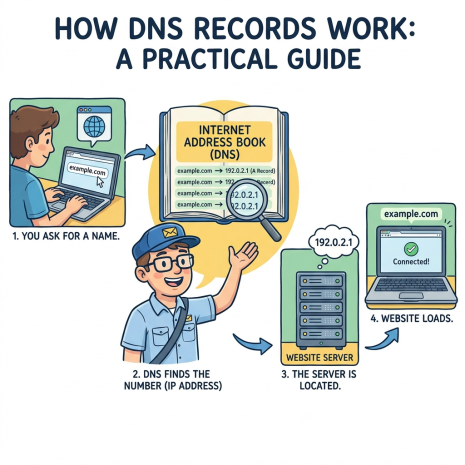
Computers on the internet communicate using IP addresses - strings of numbers like 192.0.2.1 or the longer IPv6 format. Humans are not good at remembering strings of numbers. DNS is the system that bridges that gap: it maintains a massive, globally distributed set of records that translate domain names into the addresses computers actually use.
When you type a domain into your browser, your computer queries a DNS resolver (usually provided by your ISP or a service like Google's 8.8.8.8 or Cloudflare's 1.1.1.1). That resolver checks its cache, and if it doesn't have a fresh answer, it works through a chain of DNS servers to find the authoritative answer. The whole process typically takes milliseconds.
The records that make this system work are stored on authoritative name servers - the DNS servers listed in a domain's WHOIS record. When you change a DNS record through your registrar or hosting panel, you're updating the data on those authoritative servers.
A Records: Pointing Your Domain to a Server
The A record is the most fundamental DNS record type. It maps a domain name to an IPv4 address. When someone visits your website, the A record is what tells their browser which server to connect to.
A typical A record looks like this: the domain example.com points to the IP address 203.0.113.42. You can also create A records for subdomains - blog.example.com pointing to a different IP than the main domain, for instance, if your blog runs on a separate server.
A records are the first thing to check when a website suddenly stops loading after a server migration. If the A record still points to the old server's IP, visitors will keep hitting the old machine even though the new one is live. Updating the A record and waiting for DNS propagation - the time it takes for the change to spread across global DNS infrastructure - is the fix.
AAAA Records: The IPv6 Version
AAAA records work identically to A records but store IPv6 addresses instead of IPv4. IPv6 addresses are longer and look like 2001:0db8:85a3:0000:0000:8a2e:0370:7334. As IPv4 address space continues to run out, IPv6 adoption has grown steadily, and most modern hosting infrastructure supports both.
For most website owners, AAAA records are managed automatically by their hosting provider. But if you're configuring DNS manually, adding AAAA records alongside A records ensures your domain is reachable over both protocol versions.
MX Records: Where Your Email Goes
MX records - Mail Exchanger records - specify which mail servers accept incoming email for your domain. Without correctly configured MX records, email sent to your domain has nowhere to go.
MX records have a priority value alongside the server address. Lower numbers mean higher priority. So if you have two mail servers - a primary at priority 10 and a backup at priority 20 - incoming mail attempts the priority 10 server first and only falls back to priority 20 if the first is unavailable. This is how redundant email delivery works.
When you switch email providers - say, moving from your hosting company's mail service to Google Workspace or Microsoft 365 - updating your MX records is the core step. The new provider gives you specific MX record values to enter. Once propagated, email starts routing to the new system. Getting MX records wrong is one of the most common causes of lost email during a provider migration.
CNAME Records: Aliases and Redirects Within DNS
A CNAME (Canonical Name) record creates an alias - it points one domain name to another domain name rather than to an IP address directly. The DNS system then follows that alias to resolve the final IP.
The most common use case is subdomains. You might create a CNAME record so that www.example.com points to example.com, ensuring both versions of your domain work. Or you might point shop.example.com to your Shopify store's domain, so your store runs under your own subdomain without you having to manage the IP address behind it.
One important limitation: you cannot use a CNAME record at the root of your domain (the bare domain without any subdomain). www.example.com can be a CNAME, but example.com itself cannot - it must use an A or AAAA record. Some DNS providers offer a workaround called ALIAS or ANAME records for this scenario.
TXT Records: The Multi-Purpose Field
TXT records are plain text entries that serve a wide range of purposes. Originally intended for human-readable notes, they've become the standard mechanism for a number of critical functions:
SPF (Sender Policy Framework) - An SPF record lists which mail servers are authorized to send email on behalf of your domain. Email servers receiving a message from your domain can check your SPF record to verify the sending server is legitimate. A correctly configured SPF record reduces the chance of your email being flagged as spam and makes it harder for others to spoof your domain in phishing attacks.
DKIM (DomainKeys Identified Mail) - DKIM adds a cryptographic signature to outgoing emails. The public key for verifying that signature is published as a TXT record on your domain. Receiving mail servers use it to confirm the message hasn't been tampered with in transit.
DMARC (Domain-based Message Authentication, Reporting and Conformance) - DMARC builds on SPF and DKIM by letting you specify what should happen when an email fails authentication - reject it, quarantine it, or let it through - and where reports should be sent. It's published as a TXT record under the _dmarc subdomain.
Domain ownership verification - When you sign up for Google Search Console, connect a domain to a third-party service, or verify domain ownership with a CDN provider, they typically ask you to add a specific TXT record. This proves you control the domain's DNS without requiring any changes to the website itself.
NS Records: The Authoritative Servers
NS (Name Server) records identify which DNS servers are authoritative for your domain - meaning which servers hold the definitive, up-to-date DNS records. When a DNS resolver needs to look up anything about your domain, it ultimately ends up querying the servers listed in your NS records.
NS records are set at the registrar level, not within your DNS zone itself. When you point your domain to Cloudflare for DNS management, for example, you update the NS records at your registrar to Cloudflare's name servers. From that point, Cloudflare's servers are the authority for your domain's DNS.
You can see a domain's current name servers in its WHOIS record. Unexpected changes to NS records are worth investigating - DNS hijacking attacks sometimes manifest as unauthorized name server changes.
SOA Records: The Zone's Administrative Data
The SOA (Start of Authority) record contains administrative information about a DNS zone. It lists the primary name server, the email address of the zone administrator (written in a slightly unusual format where the @ is replaced with a dot), and several timing values that control how secondary DNS servers cache and refresh the zone data.
Most website owners never need to touch SOA records directly - they're managed automatically by DNS providers. But when debugging DNS issues or working with self-hosted DNS infrastructure, understanding the SOA record helps explain why changes propagate at the speed they do.
DNS Propagation: Why Changes Don't Take Effect Instantly
Every DNS record has a TTL - Time to Live - measured in seconds. This value tells DNS resolvers how long they can cache the record before checking for a fresh copy. A TTL of 3600 means the record can be cached for one hour. A TTL of 86400 means up to 24 hours.
When you make a DNS change, resolvers around the world continue serving the old cached value until their TTL expires. This is why DNS changes can take anywhere from minutes to 48 hours to fully propagate - it depends on the TTL that was set before the change. If you're planning a migration, lowering your TTL values a day or two in advance (to something like 300 seconds) means the transition will be much faster when you make the actual change.
A DNS lookup tool lets you check what any DNS resolver is currently seeing for your domain. If your change has propagated correctly, the new values will show up. If you're still seeing old values, you know the propagation is still in progress - or that something went wrong with the record itself.
Putting It Together
DNS records are not complicated once you have a mental model of what each type is responsible for. A and AAAA records direct web traffic. MX records direct email. CNAMEs create aliases. TXT records handle authentication and verification. NS records point to the authoritative servers. SOA records manage zone administration.
When something breaks - a website goes down, email stops arriving, a subdomain stops working - working through these record types systematically is almost always faster than guessing. A DNS lookup tool that lets you check any record type against any domain is the starting point for that process.